

Source Diversity
Mix different source types for richer content variety. Combine RSS feeds with social media for comprehensive coverage.
Topics are the foundation of Crowdynews. They define what content to collect, from which sources, and how to filter it automatically. This guide covers everything you need to know about creating, configuring, and managing topics effectively.
A topic is a collection configuration that:
---
config:
  look: handDrawn
---
flowchart TD
    A["🎯 Topic
    - Content Configuration"] --> B["📡 Sources
    - YouTube
    - RSS
    - Twitter
    - Instagram"]
    B --> C["🔍 Filters
    - Date
    - Regex
    - Author Whitelist"]
    C --> D["📋 Queue
    - Pin
    - Hide
    - Reorder"]
    D --> E["🎨 Widgets
    - Embed Anywhere"]

    A -.-> F["📊 API Access"]
    D -.-> F
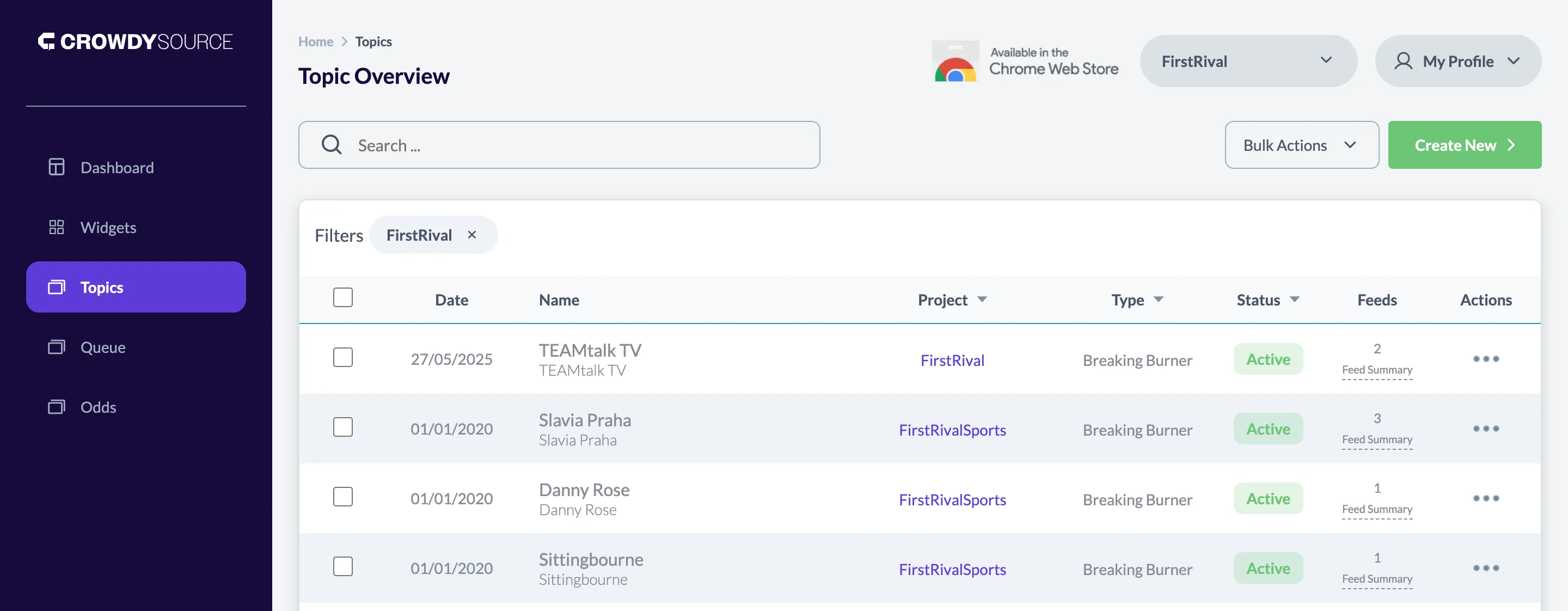
Navigate to Topics
From the main dashboard, click “Topics” in the navigation menu and use the “Create New” button.
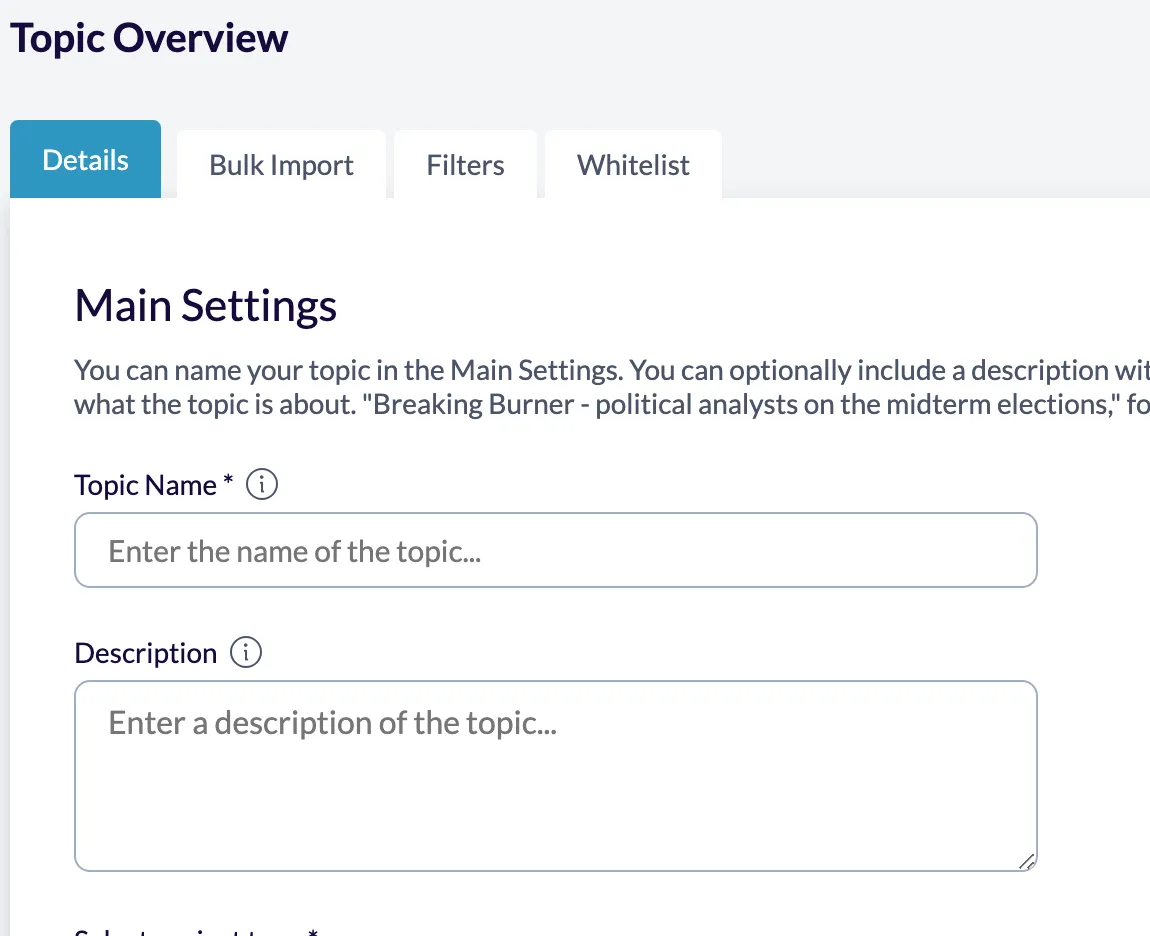
Topic Basic Information
Provide essential details for your topic:
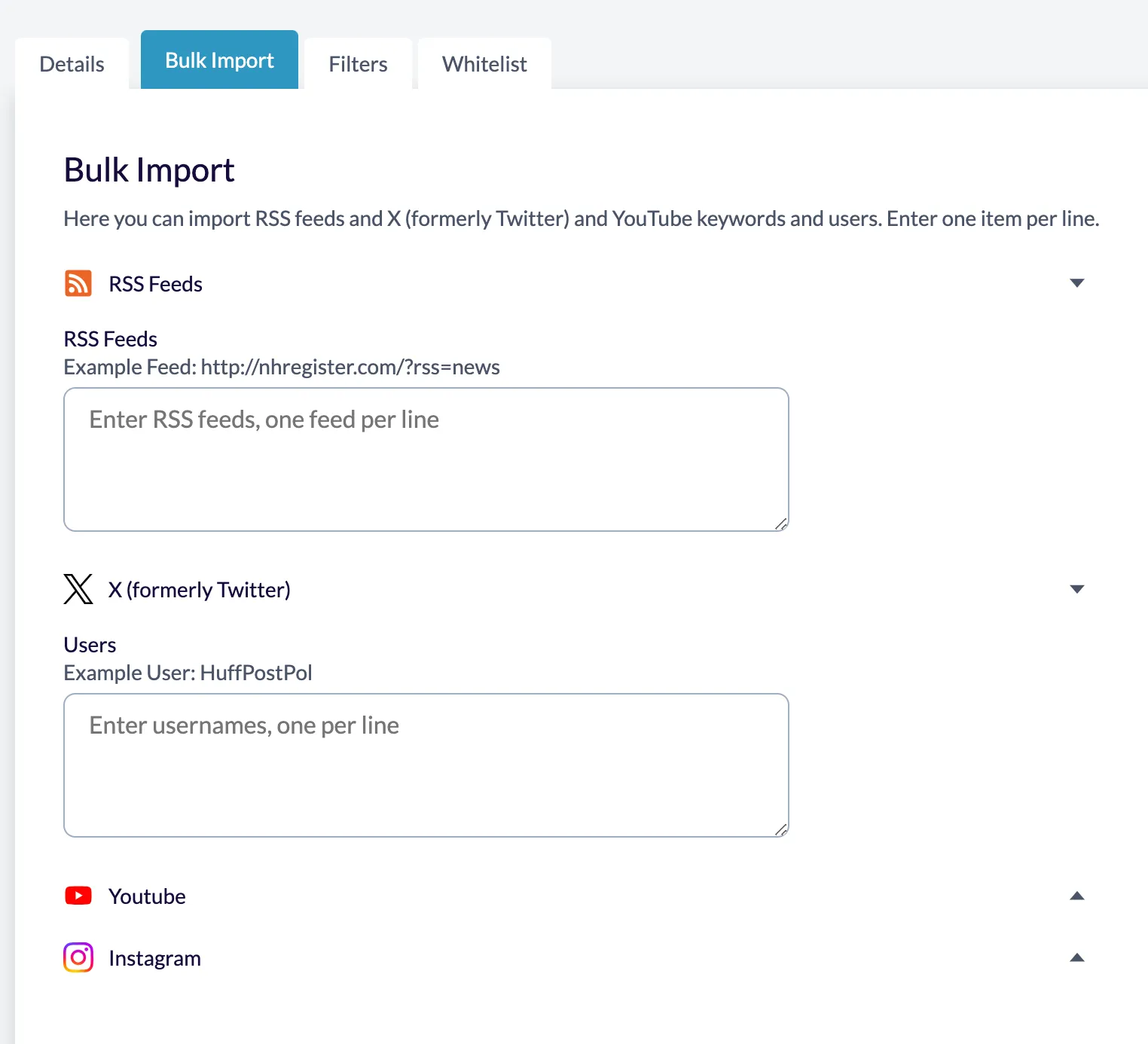
Configure Sources
Navigate to “Bulk Import” tab and add one or more content sources to your topic. Each source type has specific configuration options. This is an optional step and you can add sources later.
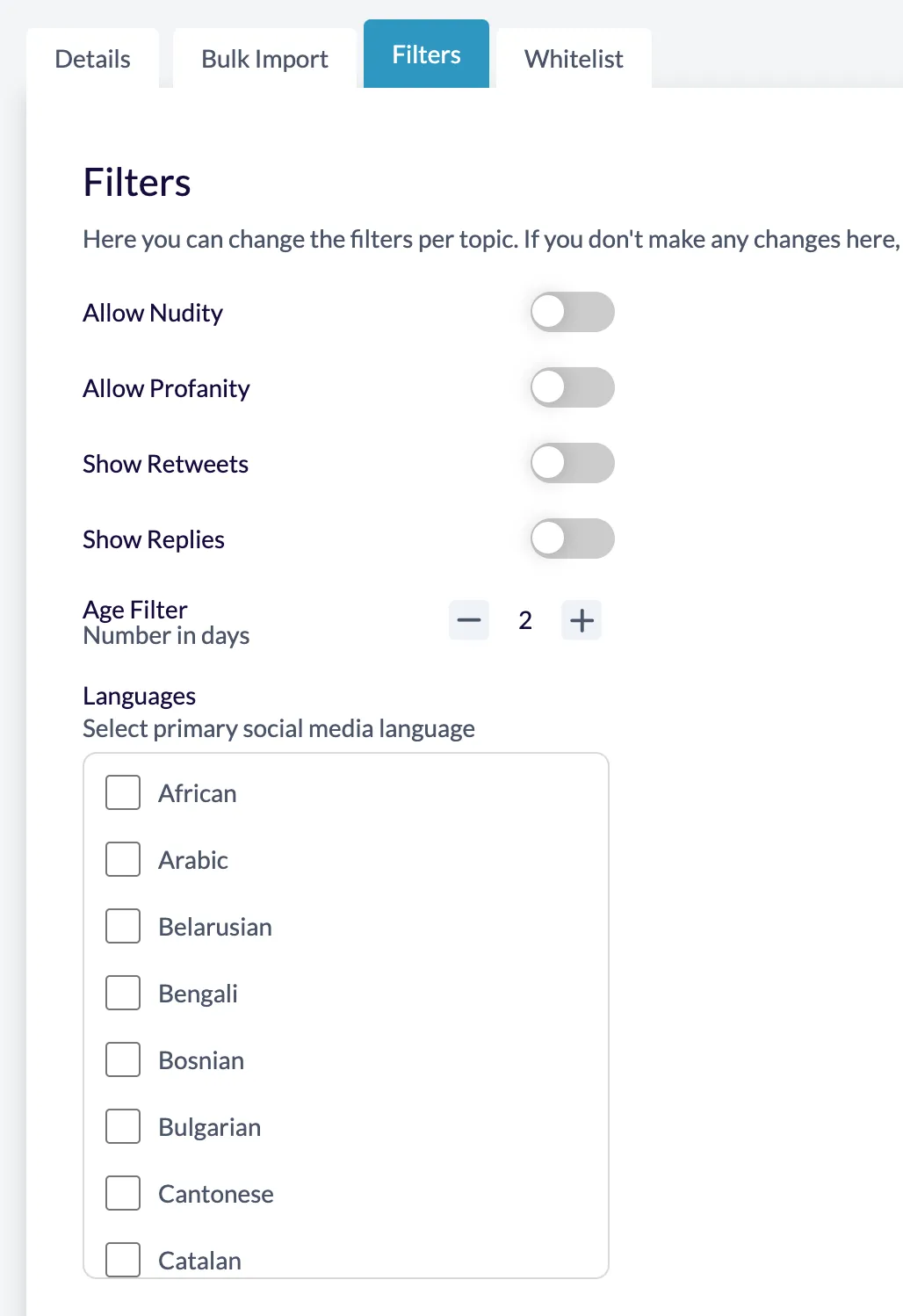
Configure Filters
Navigate to “Filters” tab and configure filters to automatically curate content. This is an optional step and you can add filters later.
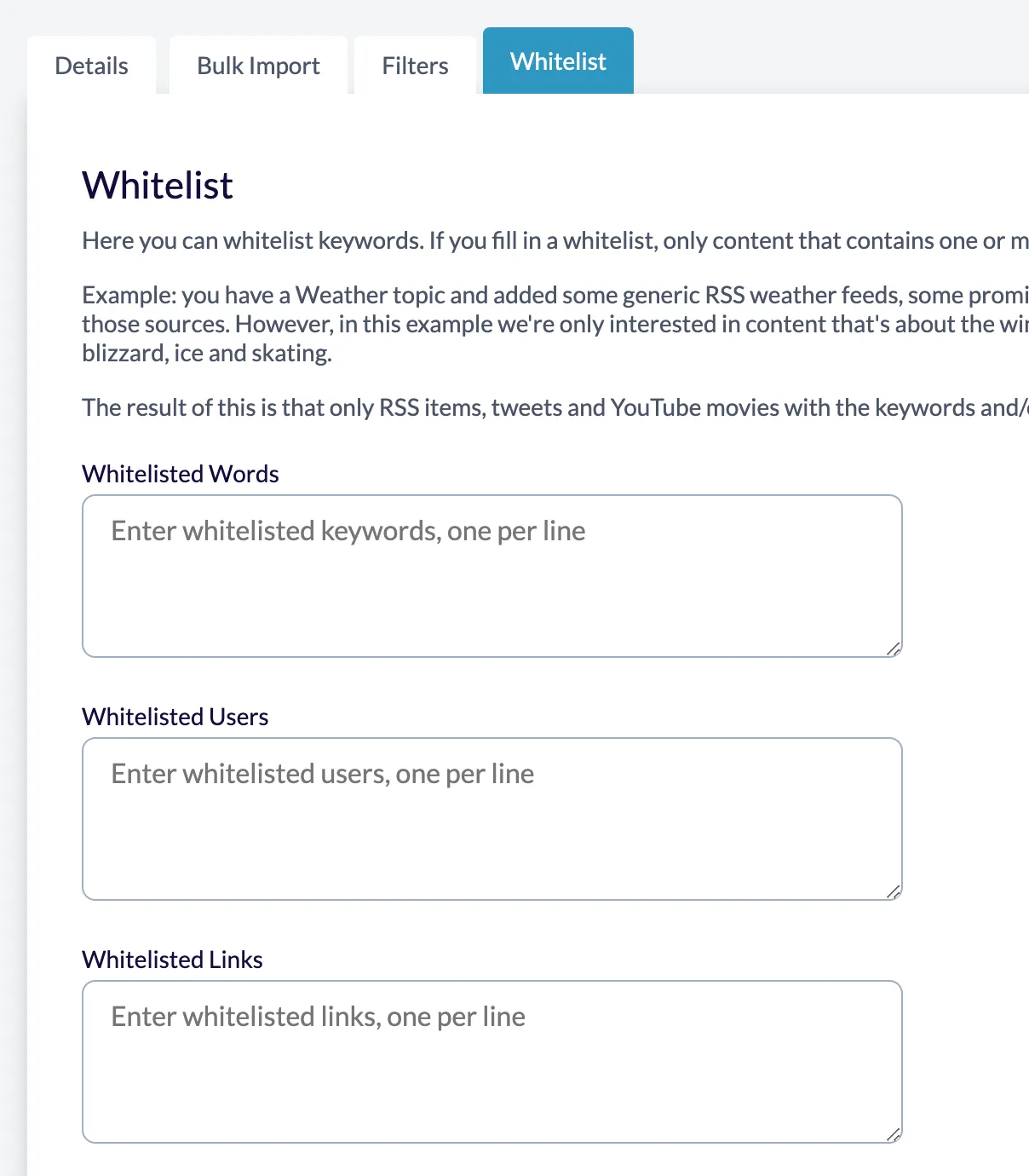
Configure Whitelist Filters
Navigate to “Whitelist Filters” tab and configure whitelist filters. This is an optional step and you can add whitelist filters later.
Configure YouTube content aggregation:
Channel-based Collection:
Channel URL: https://www.youtube.com/channel/UC_CHANNEL_IDVideo-based Collection:
Video IDs: dQw4w9WgXcQ, jNQXAC9IVRw Placeholder: YouTube source configuration interface
Add RSS feeds from blogs, news sites, or any RSS-compatible source:
Feed URL: https://example.com/rss.xmlSupported Feed Types:
Placeholder: RSS source configuration interface
Collect tweets from specific users or hashtags:
User-based Collection:
Username: @elonmuskHashtag-based Collection:
Hashtag: #spacex
Placeholder: Twitter source configuration interface
Aggregate Instagram posts from users or hashtags:
User-based Collection:
Username: @natgeoHashtag-based Collection:
Hashtag: #photography
Placeholder: Instagram source configuration interface
Automatic filtering helps you curate content without manual intervention. Configure filters to ensure only relevant content appears in your queue.
Control content freshness:
Placeholder: Date filter interface with time range options
Options:
Use regex patterns to include or exclude content based on titles and text content:
Include Patterns (Whitelist):
(AI|artificial intelligence|machine learning)Exclude Patterns (Blacklist):
(advertisement|sponsored|promo)
Placeholder: Text filtering interface with regex input fields
Filter content based on the author or username:
Whitelist Authors:
author1, @user2, specific_usernameBlacklist Authors:
spammer1, @advertiser, bot_account
Placeholder: Author filtering interface with whitelist/blacklist fields
Access Topic Settings
Click the settings icon next to any topic in your dashboard.
Placeholder: Topic list with settings icons
Modify Configuration
Update sources, filters, or basic information as needed.
Placeholder: Topic editing interface
Save Changes
Changes take effect immediately and will apply to new content collection.
Monitor your topic performance:
Placeholder: Analytics dashboard showing content collection metrics
Key Metrics:
Create similar topics quickly by duplicating existing configurations:
Source Diversity
Mix different source types for richer content variety. Combine RSS feeds with social media for comprehensive coverage.
Smart Filtering
Start with broad filters and refine based on actual content. Monitor filter effectiveness regularly.
Regular Monitoring
Check topic performance weekly. Adjust sources and filters based on content quality and relevance.
Clear Naming
Use descriptive topic names that indicate purpose and content scope. This helps with organization as you scale.
No Content Appearing:
Too Much Irrelevant Content:
Source Connection Errors:
Set up webhooks to receive notifications when new content is collected:
{ "webhook_url": "https://your-site.com/webhook", "events": ["content_added", "filter_matched"]}Add custom metadata to topics for advanced organization:
{ "priority": "high", "category": "technology", "target_audience": "developers"}Ready to organize your content? Learn how to manage queues or explore widget creation.